
Learn Screenshots In macOS
Stop guessing and start snapping! Follow our beginner-friendly guide to learn simple macOS screenshot methods for any Mac desktop or MacBook.
Taking screenshots on macOS is straightforward and offers several methods to capture exactly what you need. Here’s a comprehensive guide to various ways you can make screenshots on your Mac:
1. Keyboard Shortcuts
Full Screen
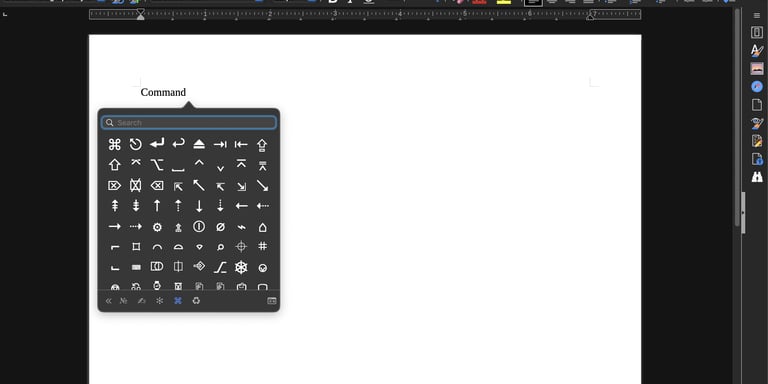
- Shortcut: Command (⌘) + Shift + 3
- Description: Captures the entire screen and saves the screenshot to your desktop.
Selected Portion
- Shortcut: Command (⌘) + Shift + 4
- Description: Changes the cursor to a crosshair. Click and drag to select the area you want to capture. Release the mouse button to take the screenshot.
Window Screenshot
- Shortcut: Command (⌘) + Shift + 4, then press the Spacebar
- Description: After pressing the initial command, the cursor changes to a camera icon. Click on the window you want to capture for a screenshot of that specific window.
Touch Bar (if applicable)
- Shortcut: Command (⌘) + Shift + 6
- Description: Captures the contents of your Touch Bar, if your Mac has one.
2. Using the Screenshot App
Screenshot Utility
- Shortcut: Command (⌘) + Shift + 5
- Description: Opens the Screenshot app, allowing you to choose between capturing the entire screen, a selected window, or a selected portion. You can also record your screen.
Options
In the Screenshot app, you can set various options:
- Where to save your screenshots (desktop, documents, clipboard, etc.)
- Set a timer to delay the screenshot
- Show or hide the mouse cursor in the screenshot
3. Using Preview
1.Open the Preview app.
2. Go to the menu bar and select File > Take Screenshot.
3. Choose between options to capture:
- From selection
- From a window
- From the entire screen
4. Using the Clipboard
You can also copy screenshots directly to the clipboard:
- Full Screen: Command (⌘) + Control + Shift + 3
- Selected Portion: Command (⌘) + Control + Shift + 4
- For Window: Command (⌘) + Control + Shift + 4 then press the Spacebar
These methods will allow you to paste the screenshot directly into documents or images by using Command (⌘) + V.
Conclusion
Whether you prefer keyboard shortcuts or using the built-in Screenshot app, macOS provides versatile tools to capture the screen in various ways. Explore these options to find which method works best for your needs!